Expression Evaluator (Tool)
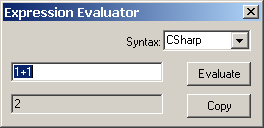 This
expression calculator is used as a tool for rapid evaluation of simple
expressions, like 1/25 or Math.Sin(3.14). It can be helpful for calculating
values required as
input of boundary
conditions or input of material- or
surface properties.
This
expression calculator is used as a tool for rapid evaluation of simple
expressions, like 1/25 or Math.Sin(3.14). It can be helpful for calculating
values required as
input of boundary
conditions or input of material- or
surface properties.
This tool can be started from the menu Tools.
| Syntax | For more complex expression one can select the syntax defined by programming languages like C# (C-Sharp) or VB (Visual Basic) from the .NET Family. |
| Input field | Input field for the entry of an expression to be evaluated. |
| Result field | Displays the result of evaluated expression. |
| Evaluate | Requests the evaluation of the expression shown in the input field. |
| Copy | Copies the contents of the result field into the clipboard making it available for the paste operation within other windows and its input fields. |
Expression entered into the input field must conform to the syntax of the programming language chosen. To receive the result R of an expression E (R = E) one shell enter the expression term E into the input field.
All functions available in the respective programming language can be used
also - especially mathematical functions like
Math.Sin or Math.Log etc.
Further (non numerical) expressions can be used here also, but describing it is
beyond the scope of this application.
Examples
| Expression (C#) | Result | Comment |
| 1/15 | 0 | The result is 0 because integral types only are used in the expression |
| 1.0/15 | 0,0666666666666667 | The result in double precision |
| 1./15 | #Error! | Error, because floating point numbers are to be entered with at least one digit after the decimal point (C#) |
| 1f/15 | 0,06666667 | The result is single precision, dure to the use of the suffix "f". |
| Math.Sin(3.14) | 0,00159265291648683 | Using the Math library |
| Math.Sin(Math.PI) | 1,22460635382238E-16 | Using constants from the Math library |
| Math.Log10(10) | 1 | |
| Math.Log(Math.E) | 1 | |
| 33.3*(Math.Log(7)+1) | 98,0988079635419 | Using expressions in braces |
Remark: If the expression entered leads to an error there will be a pop-up window revealed explaining the cause.
Remark: Please be aware of the fact, that numeric constants must conform to the syntax of the programming language, thus the decimal comma (for example) might differ from the current localisation of the system as shown here above.
Remark: Detailed syntax descriptions for expressions:
Note: You shall switch between input fields by using the TAB-key. Using that key confirms the data entry. On the other hand it provides a good alternative compared to permanent mouse use.
See also: Boundary conditions window, Element Editor